Set up CommercePing on Shopify
Six short steps from install to a working order message.
1. Install CommercePing
CommercePing is not public in the Shopify App Store yet. Open the install link we send you while you are signed in to your Shopify admin.
- Open the install link.
- Review the permissions Shopify lists (orders, customers, fulfillments) and press Install.
- The app opens inside Shopify admin on Home, with a short list of setup steps.
The Free plan starts automatically. No payment is asked at install.
2. Connect your WhatsApp Business number
Messages go out from your own WhatsApp Business number.
- On Home, open the WhatsApp setup step.
- Follow the Meta window that opens: sign in with Facebook, pick or create your WhatsApp Business account, enter your number and confirm the code Meta sends.
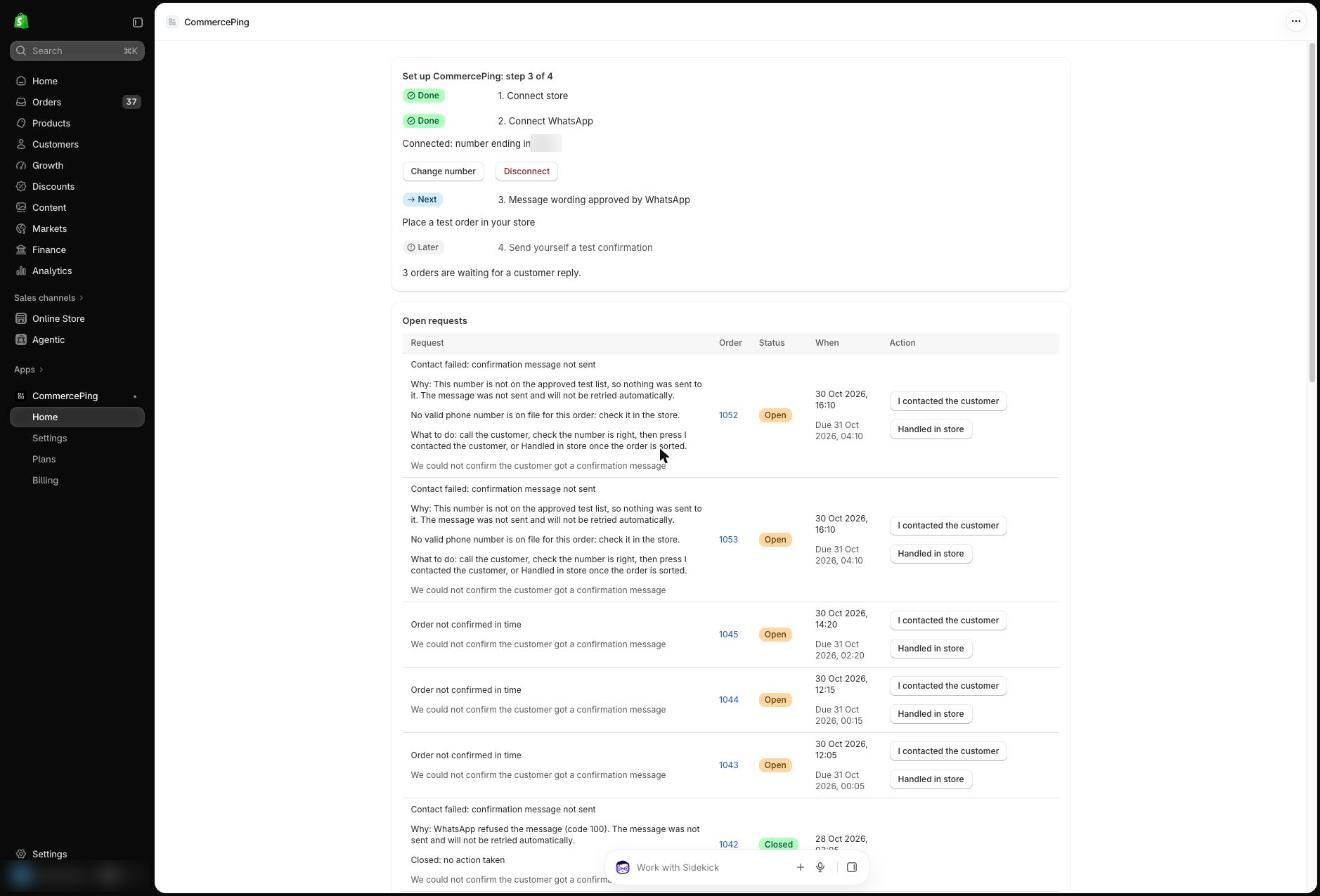
- Return to CommercePing. The step shows Done and the number it is connected to. Change number and Disconnect are there if you need them.
WhatsApp message fees are billed by Meta to your WhatsApp Business account. CommercePing adds no markup.
3. Choose which messages are sent
Cash on delivery orders get a WhatsApp message with the order number, the total and two buttons: Confirm order and Cancel order. This is on from the start. The wording is fixed; there is no template editor. Messages are in English.
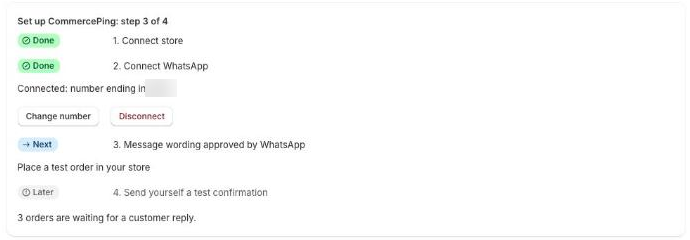
On Home, under Notifications, switch on the optional notices. They are off until you turn them on:
- Order received, one message when an online-payment order is placed (cash on delivery orders get the confirmation request instead)
- Shipped, with tracking when Shopify has it
- Delivered, sent when you press Mark delivered (or the store signals delivery). It says the store marked it as delivered; it is not carrier-verified.
Open Settings to change the reply deadline, the reminder (one after 3 hours by default, a second is optional), quiet hours (22:00 to 08:00 customer time by default; held, not dropped), the daily message limit, and whether a customer's Cancel tap cancels the order in Shopify.
4. Free plan and paid plans
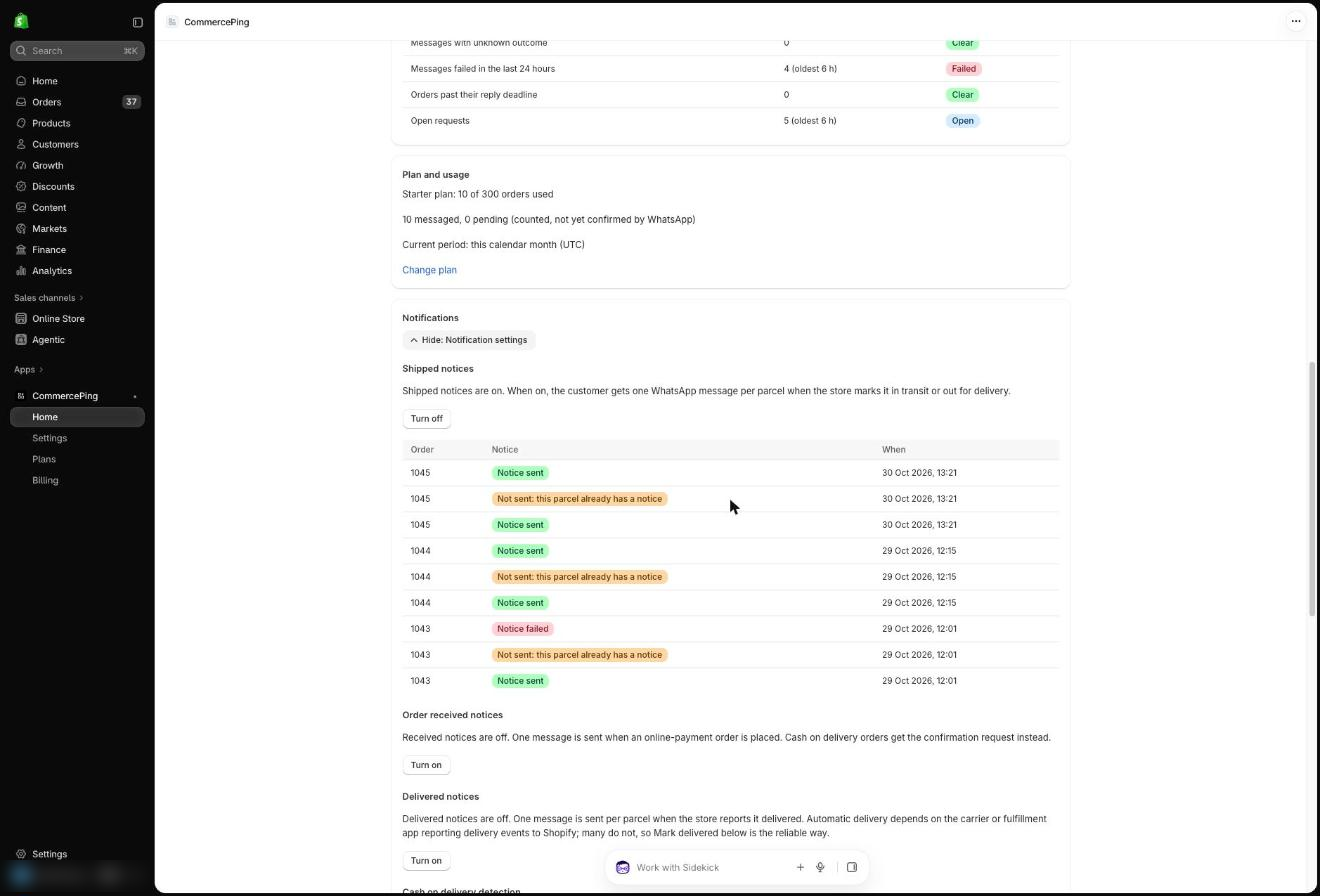
Open Plans from the Change plan link on Home, or from the app menu.
| Plan | Per month | Orders included | Extra order |
|---|---|---|---|
| Free | $0 | 50 | none |
| Starter | $7 | 300 | $0.03 |
| Growth | $15 | 1,000 | $0.02 |
| Pro | $29 | 3,000 | $0.01 |
An order counts once, however many messages follow. On Free, new confirmations pause at 50 orders in a month; you are warned at 40 and 50. There is no trial.
To upgrade, choose a plan and press its button. Shopify shows the charge and asks you to approve it. Nothing is charged until you approve. To go back to Free, press Switch to Free at month end.
5. Check it works with a test order
- In your store, place a cash on delivery order with your own WhatsApp number as the customer phone.
- You get the confirmation message on WhatsApp. Quiet hours (22:00 to 08:00 by default) hold messages until morning, so test outside them or turn them off in Settings.
- Tap Confirm order.
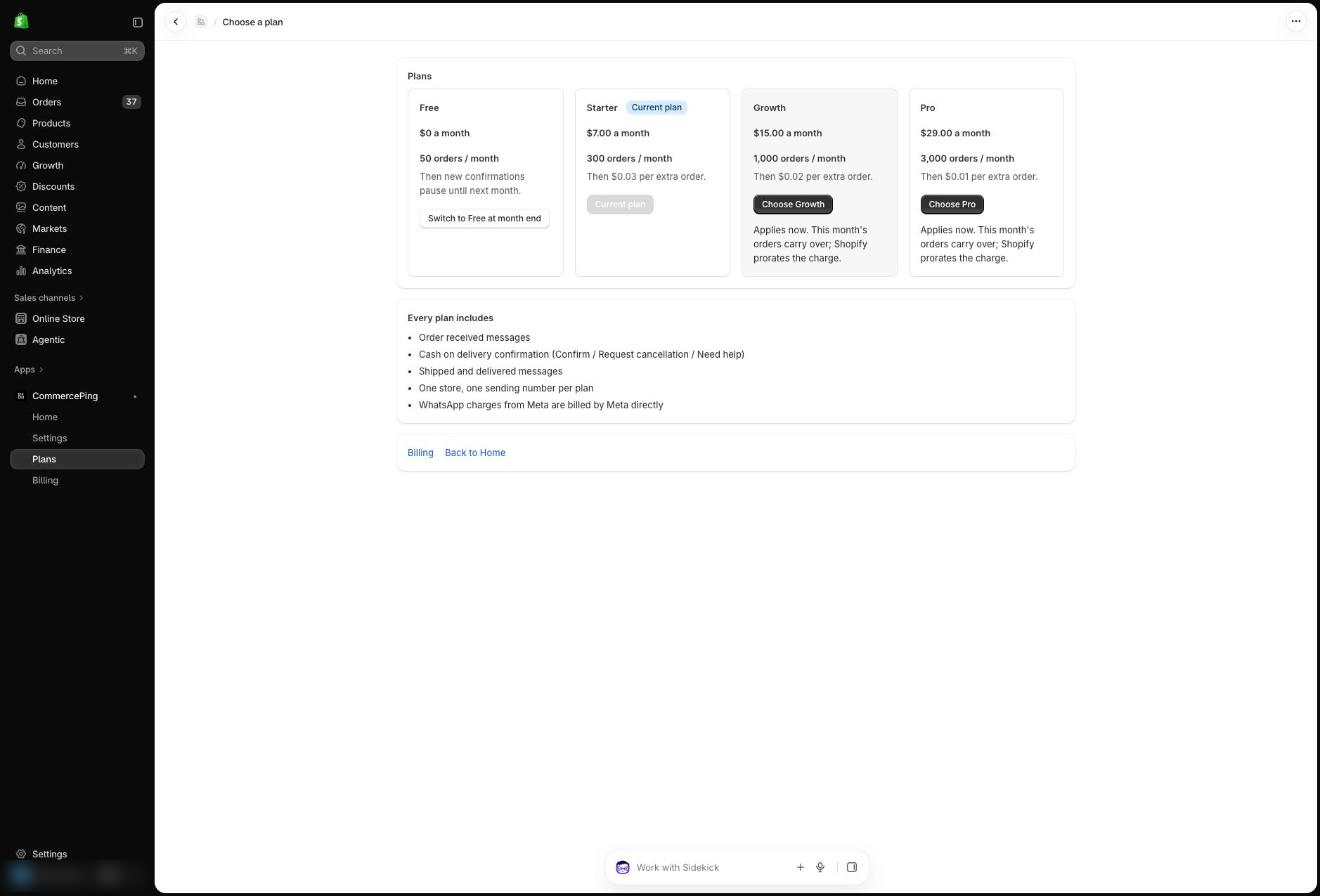
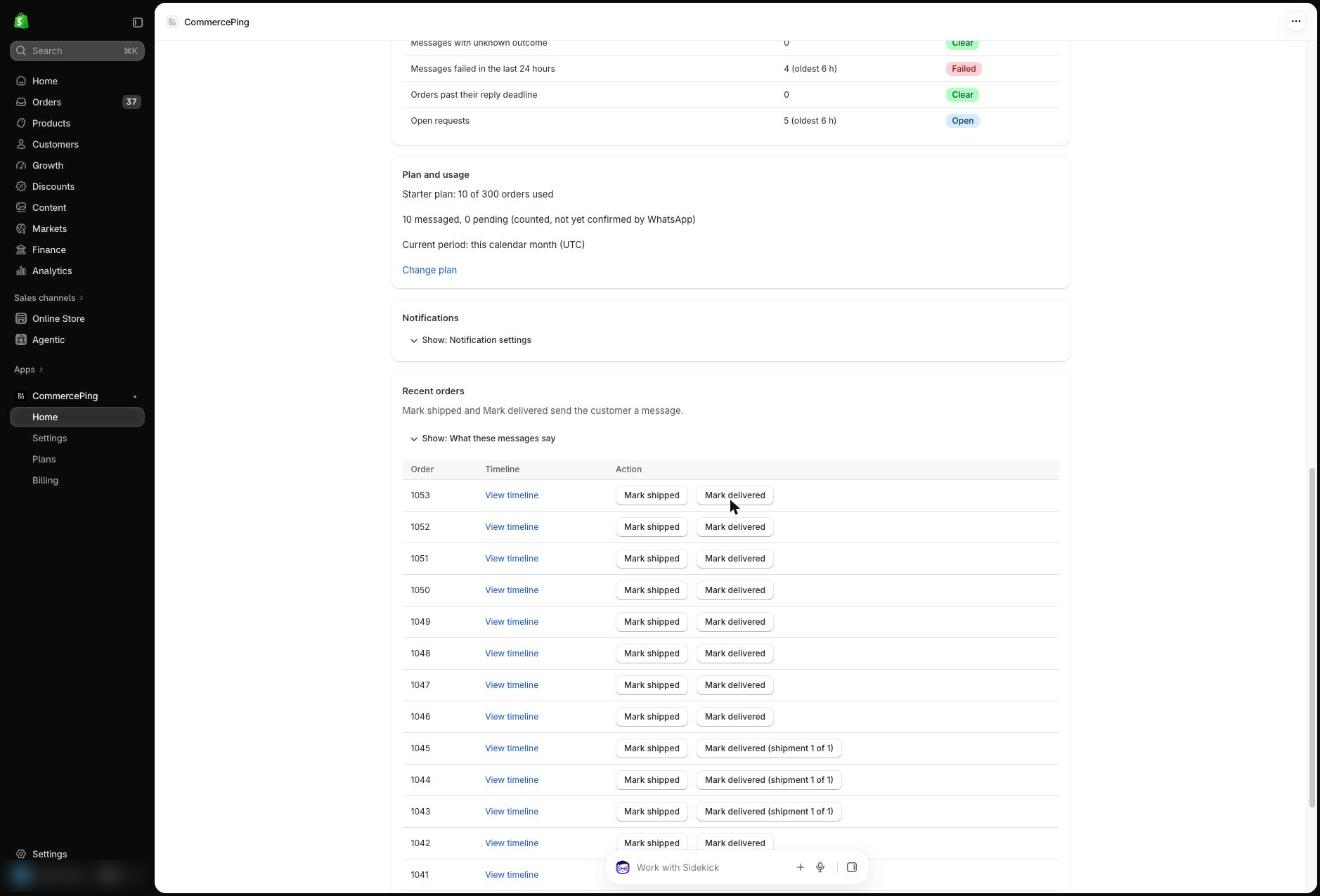
- On Home, under Recent orders, press View timeline for that order. The confirmation shows there.
If you turned on Shipped or Delivered notices, press Mark shipped or Mark delivered on that order to see those messages too. If nothing arrives, check Home for a health or setup warning, then write to us.
6. Disconnect or uninstall
- Optional: if you pay for a plan, open Plans and press Switch to Free at month end. Shopify stops future app charges when you uninstall; a charge already billed can still appear.
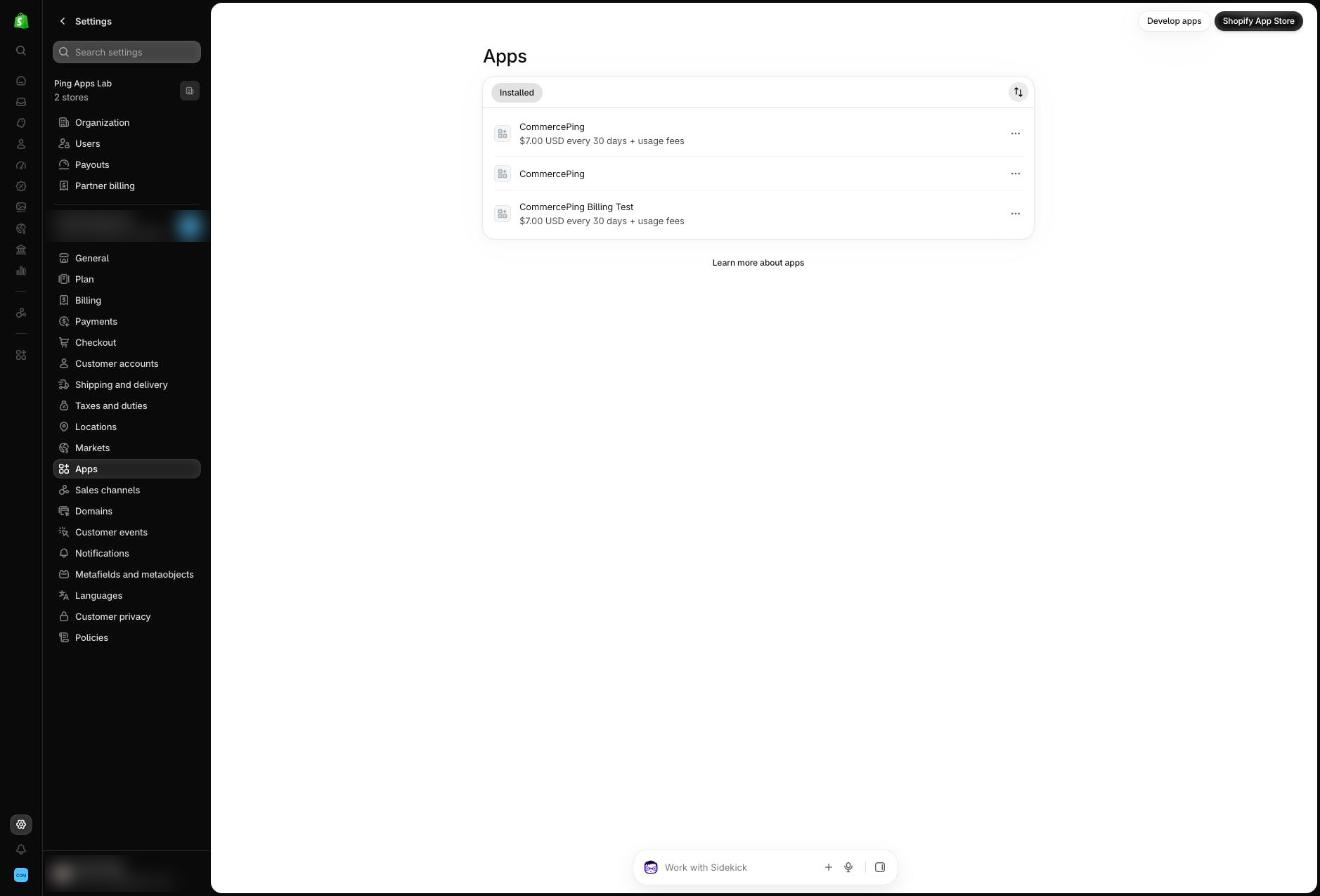
- In Shopify admin open Settings, then Apps, choose CommercePing and press Uninstall.
Messages stop right away. Order and message data are kept for up to 90 days after uninstall, unless a deletion request from Shopify comes sooner; see the privacy policy.
Stuck?
Email [email protected]. We reply to a first message within 24 working hours.