Set up CommercePing on WooCommerce
Six short steps from installing the plugin to a confirmed test order.
1. Install and connect the plugin
- In WordPress open Plugins, then Add New, then Upload Plugin. Upload the CommercePing plugin ZIP and press Activate. WooCommerce must be active.
- Open WooCommerce, then CommercePing.
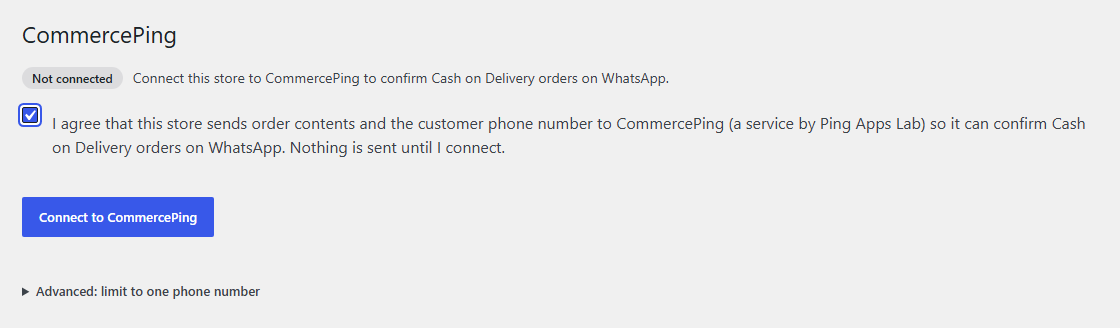
- Tick the box that agrees to send order contents and the customer phone number to CommercePing.
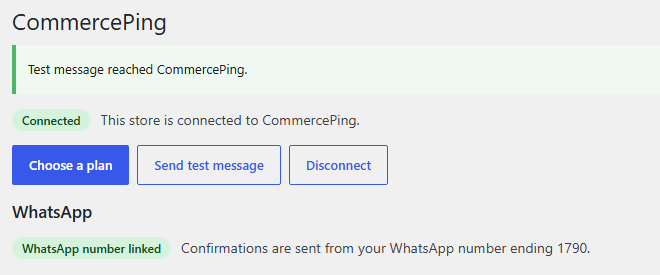
- Press Connect to CommercePing. The page shows Connected.
Nothing is sent before you connect. It works with classic and block checkout.
2. Connect your WhatsApp Business number
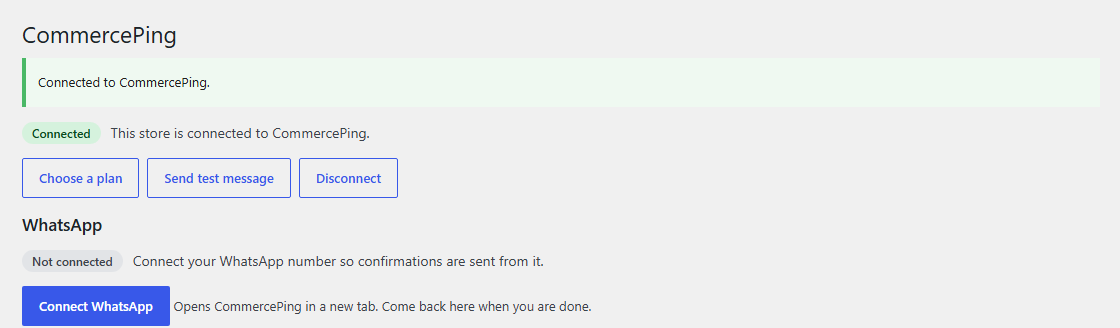
- On the same page, press Connect WhatsApp. CommercePing opens in a new tab.
- Follow the Meta window: sign in with Facebook, pick or create your WhatsApp Business account, enter your number and confirm the code.
- Come back to the WordPress tab and press Check again.
WhatsApp message fees are billed by Meta to your WhatsApp Business account. CommercePing adds no markup.
3. Choose how orders are confirmed
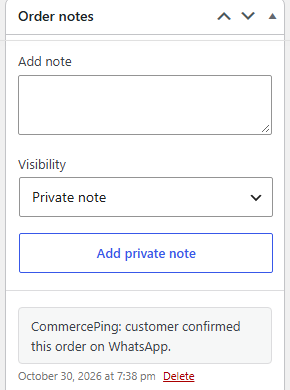
Cash on delivery orders get a WhatsApp message asking the customer to confirm. The customer's answer is written to the order as an order note. The wording is fixed; there is no template editor. Messages are in English.
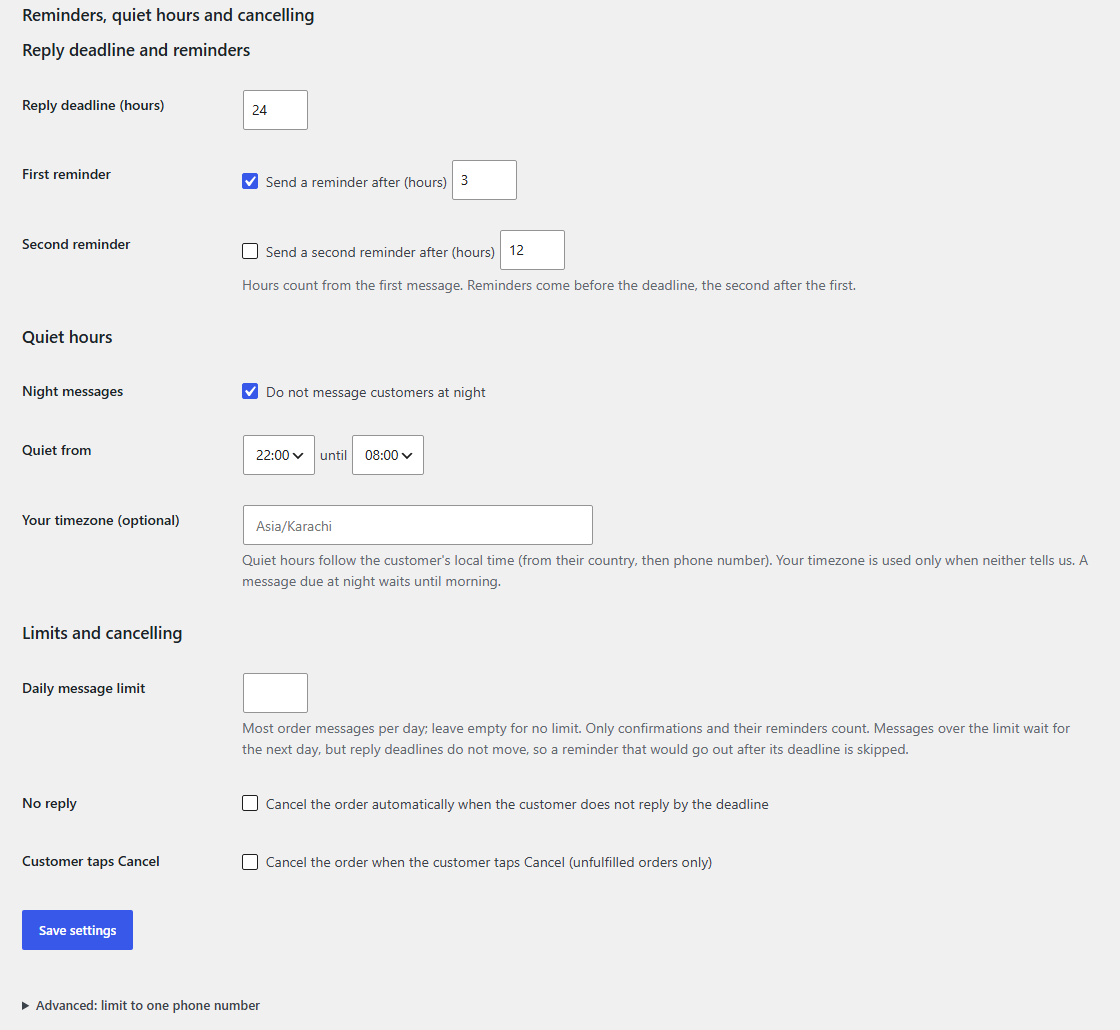
Under Reminders, quiet hours and cancelling you can set:
- Reply deadline in hours.
- Send a reminder after a number of hours, and an optional second reminder.
- Quiet hours, so customers are not messaged at night.
- Daily message limit.
- Whether to cancel orders nobody replied to, and whether to cancel when the customer taps Cancel.
- Pay online instead of cash on delivery: after a customer confirms, send a link to your own store payment page. Off by default.
Press Save settings.
4. Plans
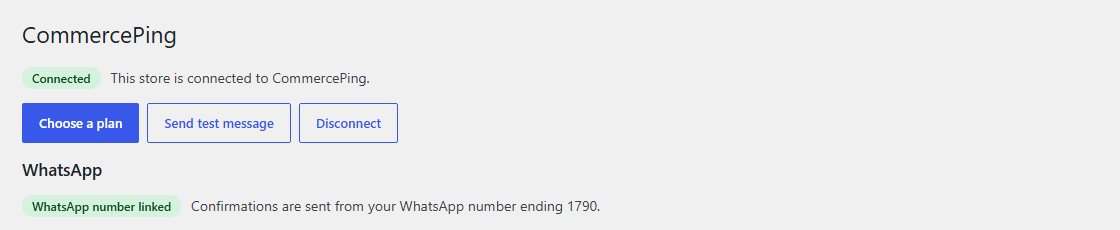
Press Choose a plan on the CommercePing page to see the plans. WooCommerce billing details will be published before WooCommerce plans open; see the pricing page for the current position.
5. Check it works with a test order
- On the CommercePing page press Send test message.
- Place a cash on delivery order in your store with your own WhatsApp number as the billing phone.
- Tap Confirm order in the WhatsApp message.
- Open the order in WooCommerce. The reply is recorded in the order notes.
6. Disconnect
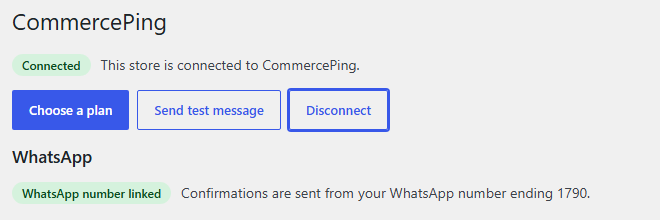
- Open WooCommerce, then CommercePing.
- Press Disconnect.
Sending stops at once. Deactivating or deleting the plugin also stops it. Order notes already written to orders are kept.
Stuck?
Email [email protected]. We reply to a first message within 24 working hours.